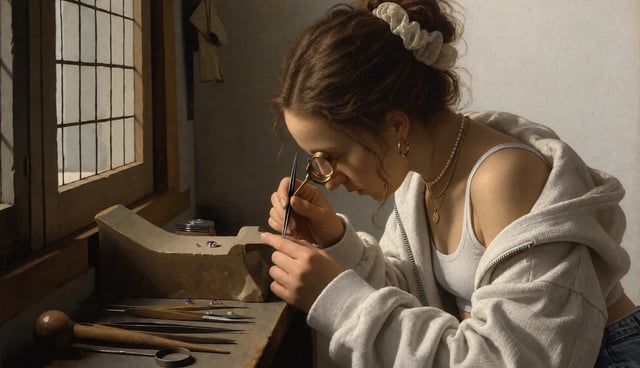
Social posts with a clear visual brief
Set the subject, mood, framing, and any headline or caption. A specific prompt gives you a concrete image to evaluate before you polish the post.
Turn a text brief or an uploaded photo into a still for a post, product concept, poster, or layout trial. Flare is the everyday GPT Images 2.5 model, selected below.
Production preview
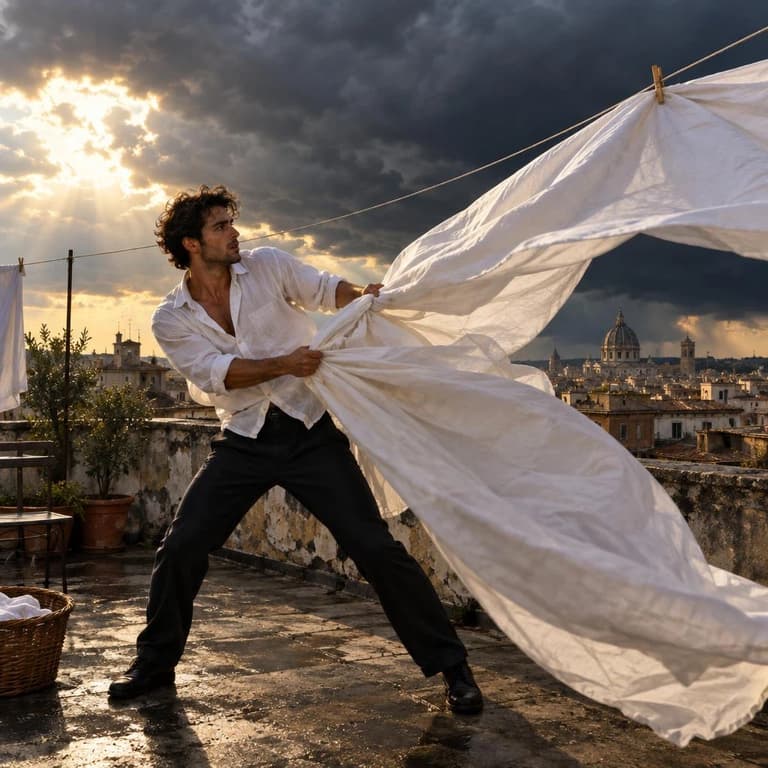
GPT Images 2.5 Flare gives you two starting points: write a prompt for a new image, or upload a photo and describe an edit. It is the everyday model selected here for social assets, product concepts, poster ideas, and early layout directions.
Give the prompt the visible decisions that matter—subject, setting, action, composition, lighting, and style. For words inside the image, write the exact copy and where it belongs. The generator starts at 1K with Auto aspect ratio while you refine the brief; when you choose a direction to keep, make a separate 2K or 4K generation and review that output as its own version.
If you already have a subject, upload the photo, name what should change, and check the whole result after each pass. When the same person or product needs several deliberate edits, GPT Images 2.5 Sunburst is the editing-oriented alternative and takes longer per generation.
See three ways to brief a still: assign exact copy and placement, build a scene around one action, or define a product through material and light.
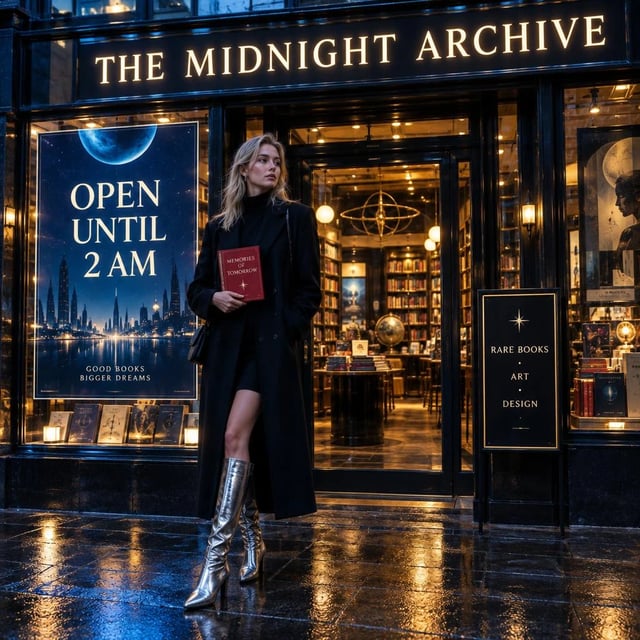
Example prompt output
A stylish young European woman standing in front of a premium retro-futuristic bookstore at night, wearing a sharp black coat and silver boots, holding a red hardcover book in one hand. The storefront is filled with elegant illuminated typography and poster design. The main sign above the entrance clearly reads: “THE MIDNIGHT ARCHIVE”. A large window poster clearly reads: “OPEN UNTIL 2 AM”. A smaller promotional sign beside the door clearly reads: “RARE BOOKS • ART • DESIGN”. The red book in her hand has the clearly legible title: “MEMORIES OF TOMORROW”. Sophisticated editorial composition, cinematic blue and amber lighting, realistic glass reflections, clean typography hierarchy, premium graphic design, photorealistic fashion photography, highly detailed, all text perfectly spelled and clearly readable.
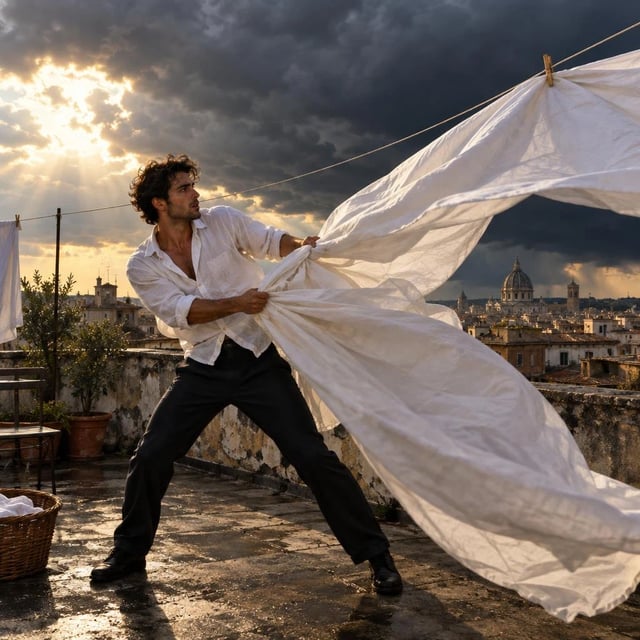
Example prompt output
A handsome young Mediterranean man standing on the rooftop of an old apartment building just before a storm, wearing a loose white shirt and dark trousers, struggling to pull a huge white bedsheet from a clothesline as powerful wind turns it into a sail around him, dramatic dark clouds approaching behind the city skyline, warm sunlight breaking through one gap in the clouds, poetic cinematic realism, expressive full-body action.

Example prompt output
A cinematic product photo of an unbranded amber glass perfume bottle with a plain frosted-glass label and no text or logo, on a marble surface, soft golden-hour lighting, shallow depth of field, elegant reflections, premium editorial photography style
Choose a starting point, describe the visible decisions, review the result, and scale the version you keep.
Use text-to-image for a new scene. Upload a photo for an edit, then say which parts should change.
Name the subject, setting, action, framing, lighting, and style. Put exact text in quotation marks and say where it belongs.
The generator begins at 1K with Auto aspect ratio. Check the crop, subject details, layout, spelling, and the area you asked to edit.
Refine one decision at a time. Choose 2K or 4K when a larger file is useful; that choice starts a separate generation, so review the new output before saving it.
Move from a visual idea to a still you can review, share, or hand into the next step.
Set the subject, mood, framing, and any headline or caption. A specific prompt gives you a concrete image to evaluate before you polish the post.
Describe the surface, material, light, camera distance, and details that need to stay visible—or upload a product photo and change the setting. Check labels, edges, and brand-critical shapes before publishing.
Write the exact words, assign each line to a location, and describe the hierarchy. Proofread the generated copy and inspect its placement before using the image as design direction.
Keep the core brief and change one decision at a time—composition, color, setting, or atmosphere—so you can compare directions without losing the point of the prompt.
Choose by the job: an everyday first direction, repeated edit control, or the earlier model option.
| DefaultGPT Images 2.5 FlareEveryday GPT Images 2.5 modelGenerate with Flare | GPT Images 2.5 SunburstRepeated-edit precisionOpen Sunburst | GPT Images 2Earlier GPT Images optionUse GPT Images 2 | |
|---|---|---|---|
| Choose it when | You need a new still, social asset, product concept, or layout direction | You already have a subject and expect several deliberate edits | You specifically want the earlier GPT Images option |
| Editing fit | Prompt-first exploration and focused edits | Tighter repeated-edit control; the generation step takes longer | Prompt or photo editing with the previous model |
| Resolution options | 1K, 2K, or 4K | 1K, 2K, or 4K | 1K, 2K, or 4K |
| Released | September 2026 | September 2026 | April 2026 |
It is the everyday GPT Images 2.5 model on this site. Use it for text-to-image generation or upload a photo for an image-to-image edit, then choose 1K, 2K, or 4K in the generator.
Yes. Describe the subject, setting, action, composition, lighting, and style. For poster or label text, write the exact words and their placement, then inspect the output for spelling and layout.
Yes. Upload a photo and say what should change and what should remain recognizable. Review the whole image after each pass, especially the subject and any brand-critical details.
Use Flare for first stills, everyday image work, and focused edits. Choose Sunburst when the same person or product needs several deliberate passes and tighter editing control matters; its generation step takes longer.
Start with the default 1K while you refine the direction. Choose 2K or 4K when a larger file is useful. A higher-resolution choice is a separate generation, so compare the new output instead of treating it as an automatic upscale.
Yes. Sign up before generating. New accounts receive starter credits, and the default 1K generation is available after signup.
The Generate button shows the current credit cost for the selected model and settings. The pricing section shows the available plans, so check both surfaces before submitting a run.
Review the available plans when you need more generations for your workflow.
Enjoy Limited-Time 30% OFF!
Start with a prompt or photo, review the 1K direction, and choose the output size that fits the job.